BOS Docs

Actual plugin views and usage guidance

This page uses real product screenshots and explains what each plugin does, how to start it, and which choices matter during setup or execution. When a plugin has no captured product screen, the section says so.

Screenshot Policy

The screenshots below are actual product screens captured from the app. Captions describe the visible workflow and the user decision on that screen.

Static docs explain behavior for public readers. The live app remains the authority for available roles, connected accounts, plugin actions, and organization-specific workflow rules.

App Directory

PlatformOS

BOS

Business Operating System for FSM-driven business applications.

Links: public page | runtime app

PublicEducation

Classes

Practical AI classes and Codex coworker training.

Links: public page

AnalyticsNetwork

Franchise Director

Network analytics and franchise roll-up reporting.

Links: public page | runtime app

CRMPipeline

Lead Director

Lead capture, follow-up, scheduling, and conversion workflows.

Links: public page | runtime app

IntakeOnboarding

Lead Director Intake

Customer intake and onboarding workflows.

Links: public page | runtime app

AdminSettings

Organization Admin

Installed apps, users, permissions, and platform settings.

Links: public page | runtime app

BillingStripe

Subscription Director

Subscription billing for software products and extensions.

Links: public page | runtime app

Lead Director Plugin Views

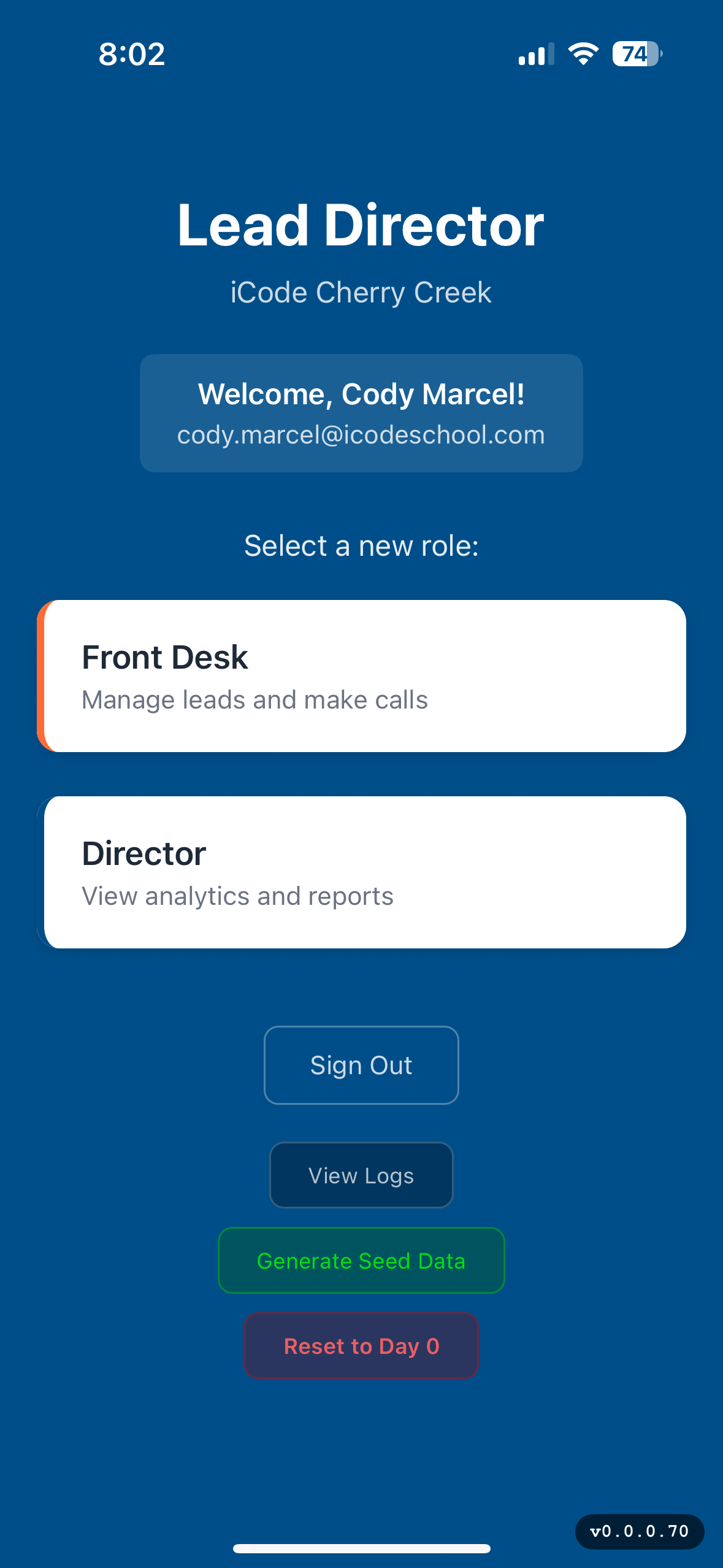
Plugin entry points: Role selection and plugin cards

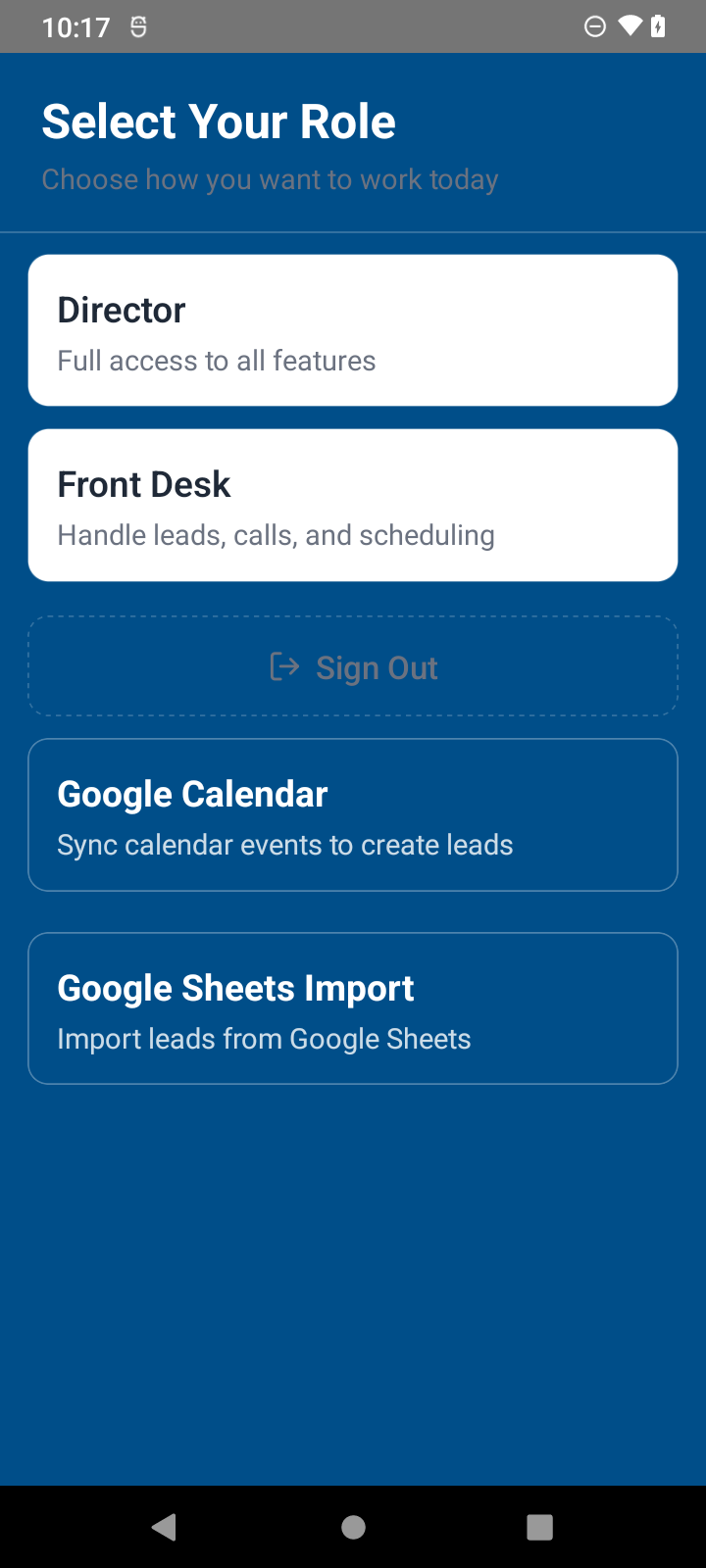
The role selection surface shows role cards and plugin cards from the app configuration. The screenshot shows Google Calendar and Google Sheets Import cards beneath Director and Front Desk roles.
Entry points
Actual Android role selection screen with Google Calendar and Google Sheets Import plugin cards
Role selection can include plugin cards beside app roles. A director can start Google Calendar Sync or Google Sheets Import from this surface.
Actual Android Lead Director role selection screen
Authenticated users choose their role before entering the app. Available roles and plugin cards depend on the selected organization and installed app.

Google Sheets Import

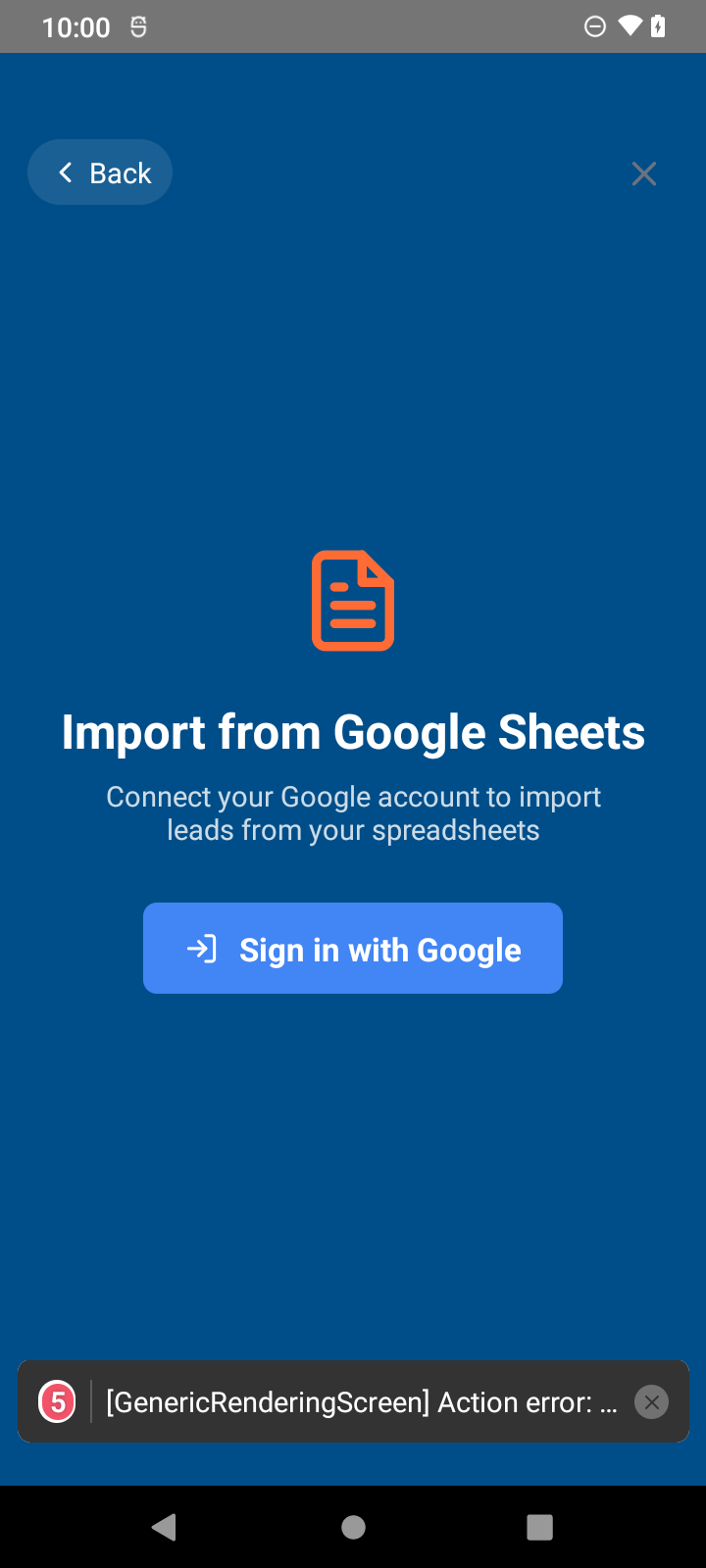
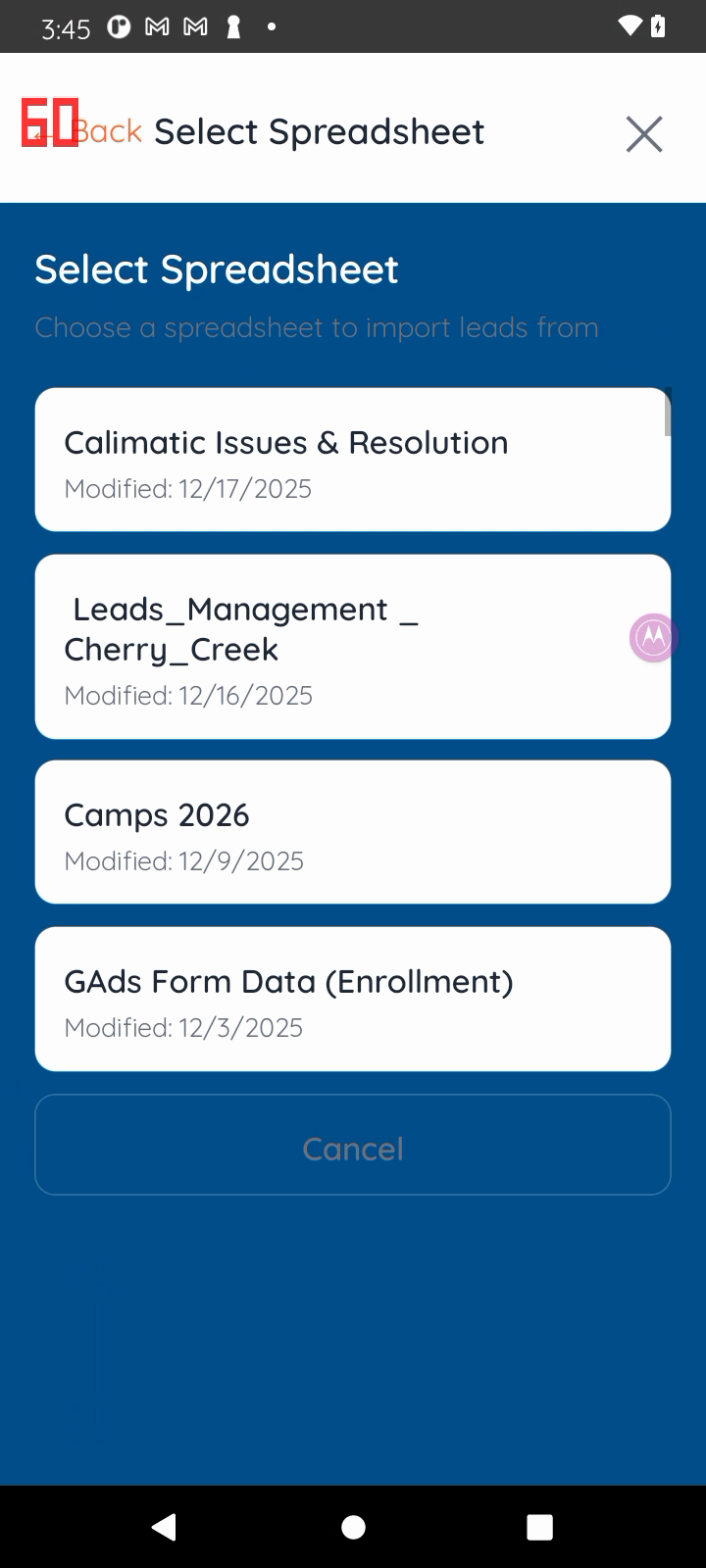
The import workflow starts with Google authorization, then guides the user through spreadsheet selection, sheet selection, column mapping, preview, import progress, and the resulting lead view.
Data import
Import fields: the first spreadsheet row is treated as column headers. The importer auto-detects common lead fields including first name, last name, email, phone, child or student name, child age, lead origin, notes, target state, trial date, and lead date. Review the mapping step before importing so each spreadsheet column targets the intended Lead Director field.
Target field usage: email or phone is required so Lead Director can deduplicate imported leads. If a target state column is detected and mapped, each row can move the created or updated lead to that pipeline state after import. If the target state is trial scheduled, a trial date column can supply the scheduled date and time; otherwise calendar availability or calendar authorization may be required.
Actual Import from Google Sheets sign in screen
Start by connecting the Google account that owns or can access the spreadsheet.
Actual Google Sheets spreadsheet selection screen
Choose the spreadsheet to import. Recent spreadsheets are shown as selectable rows.
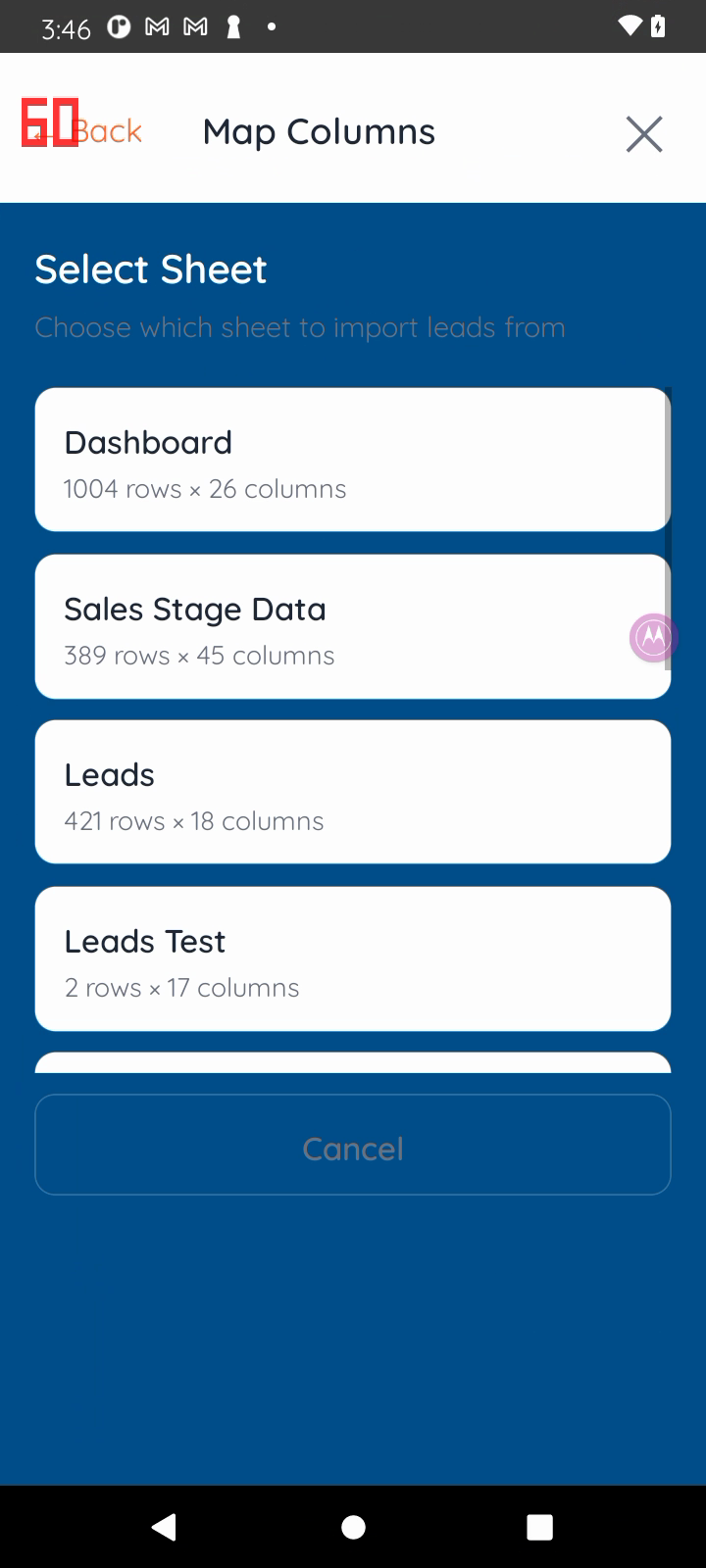
Actual Google Sheets sheet tab selection screen
Choose the sheet tab inside the selected spreadsheet. Row and column counts help confirm the correct tab.
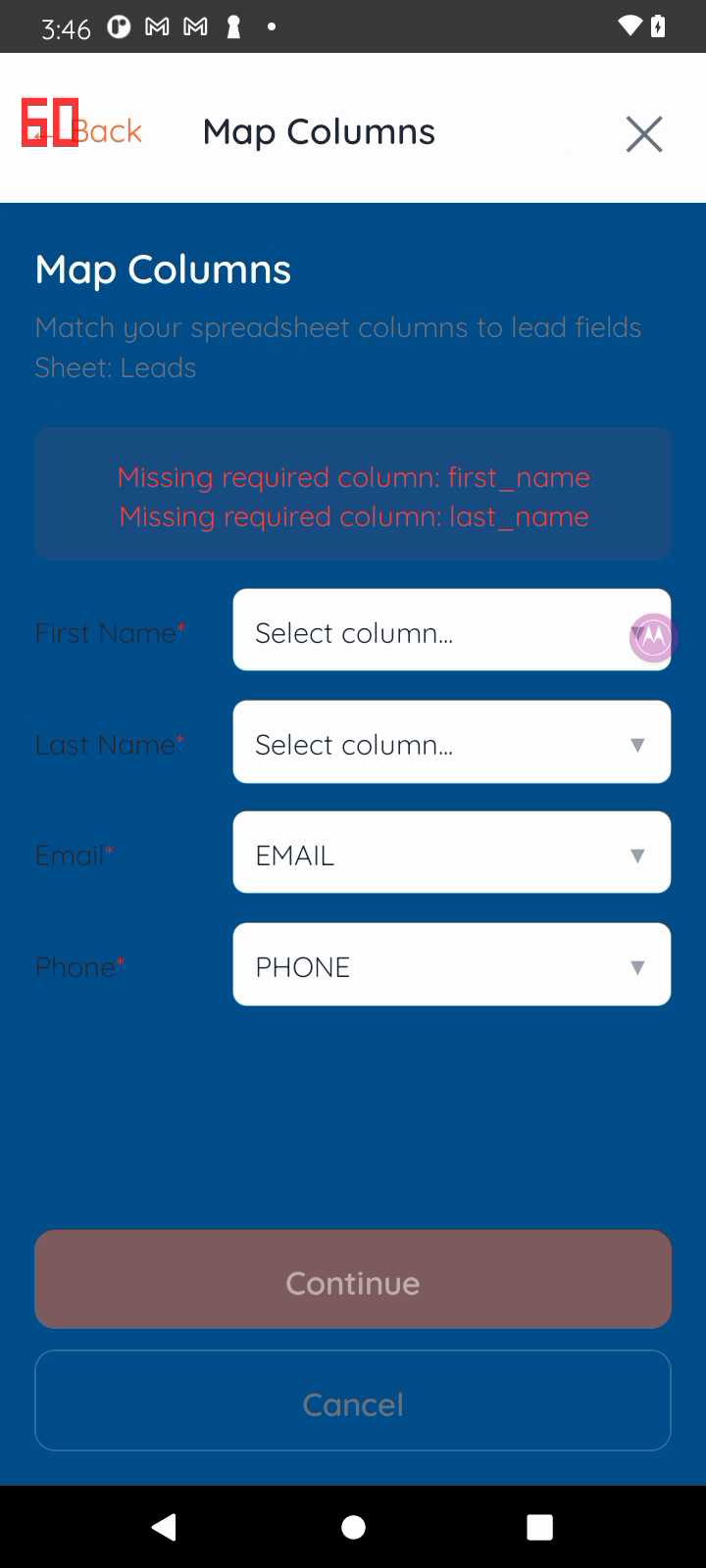
Actual Google Sheets column mapping screen
Review detected columns and confirm how spreadsheet headers map into Lead Director fields.
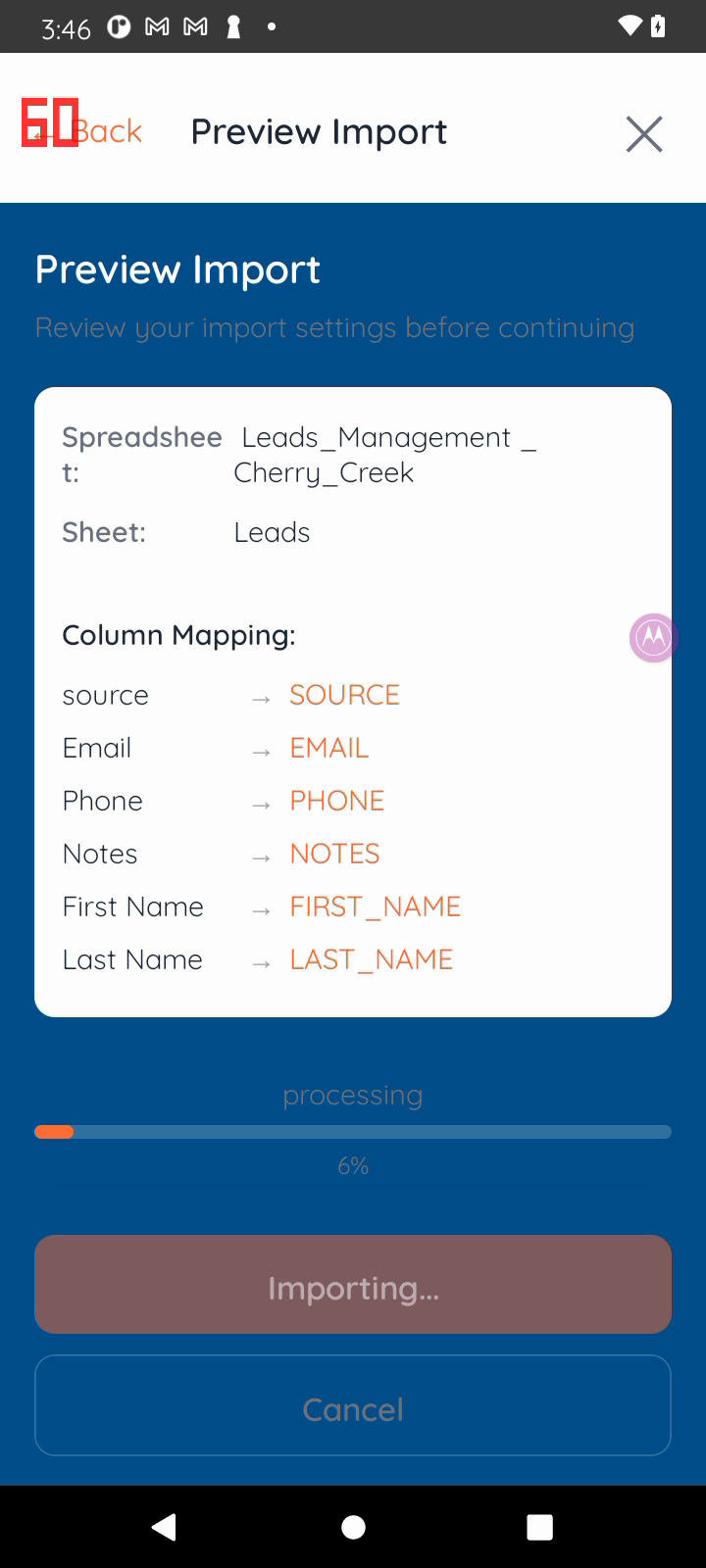
Actual Google Sheets preview import screen
Preview the import settings before starting the import job.
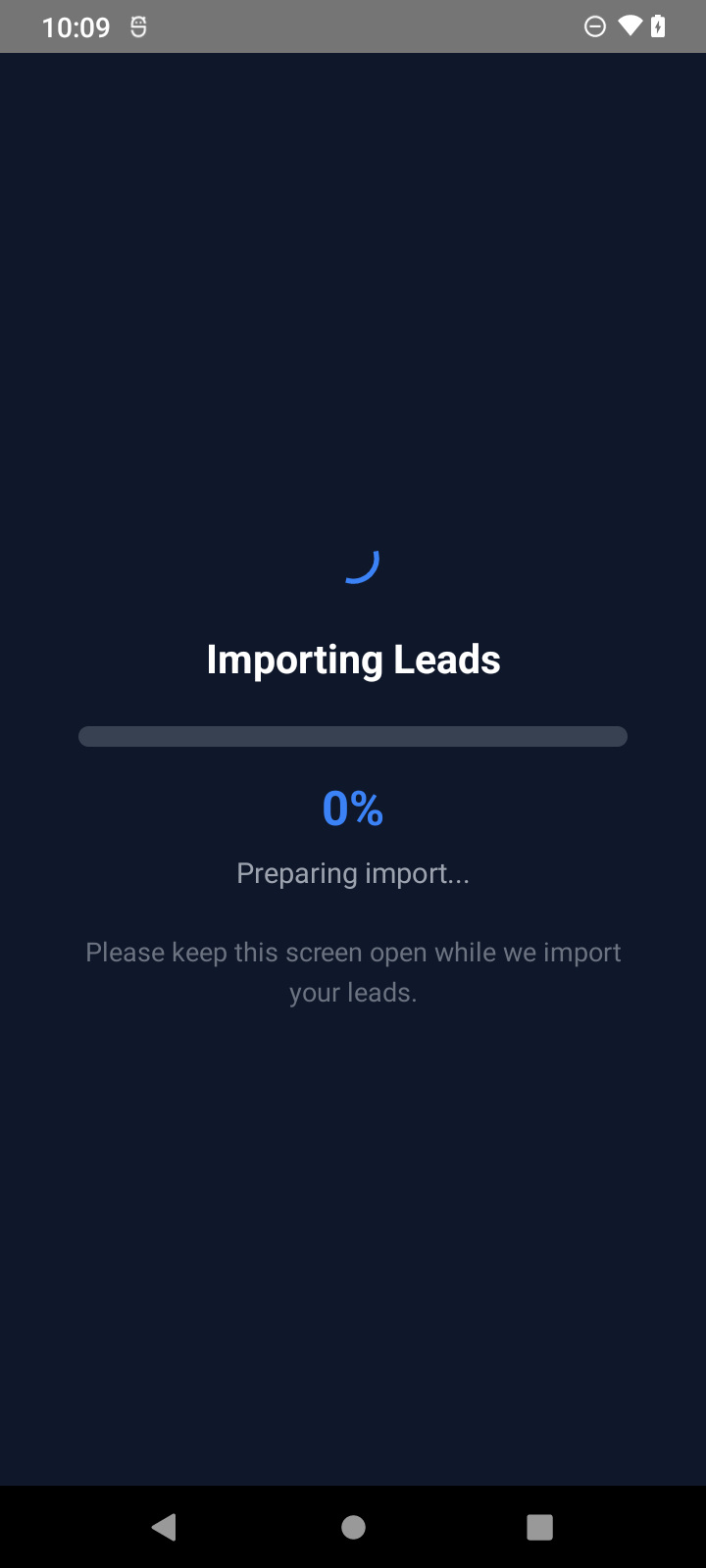
Actual importing leads progress screen
The progress screen keeps the user in the import workflow while rows are processed.
Actual lead detail screen after import complete
After import, the lead detail view exposes the next available actions for the imported record.

Google Calendar

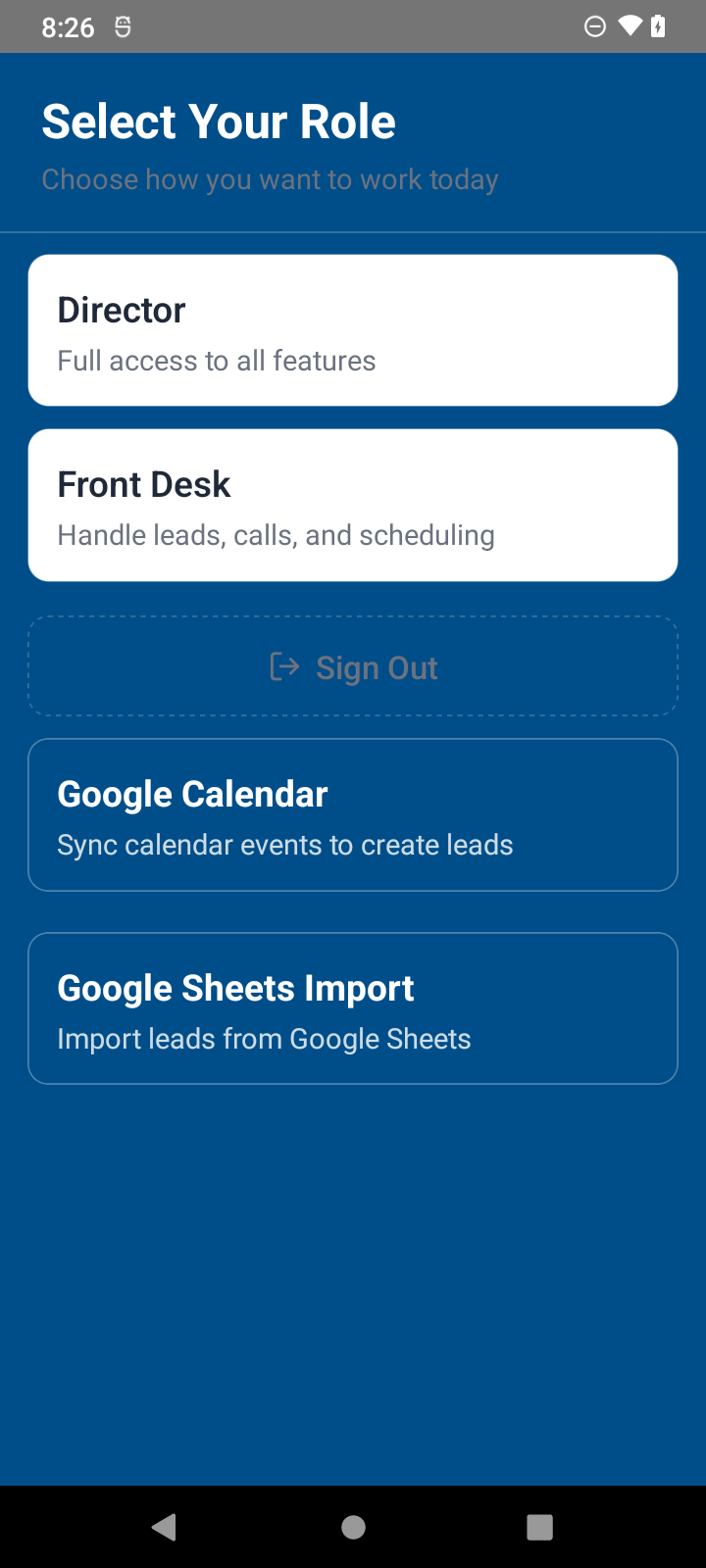
Google Calendar appears as a role-selection plugin card for syncing calendar events into the lead workflow.
Scheduling
Actual role selection screen with Google Calendar plugin card
The Google Calendar plugin card starts calendar sync for the selected role.

Lead detail action plugins: Notes and SendGrid Email

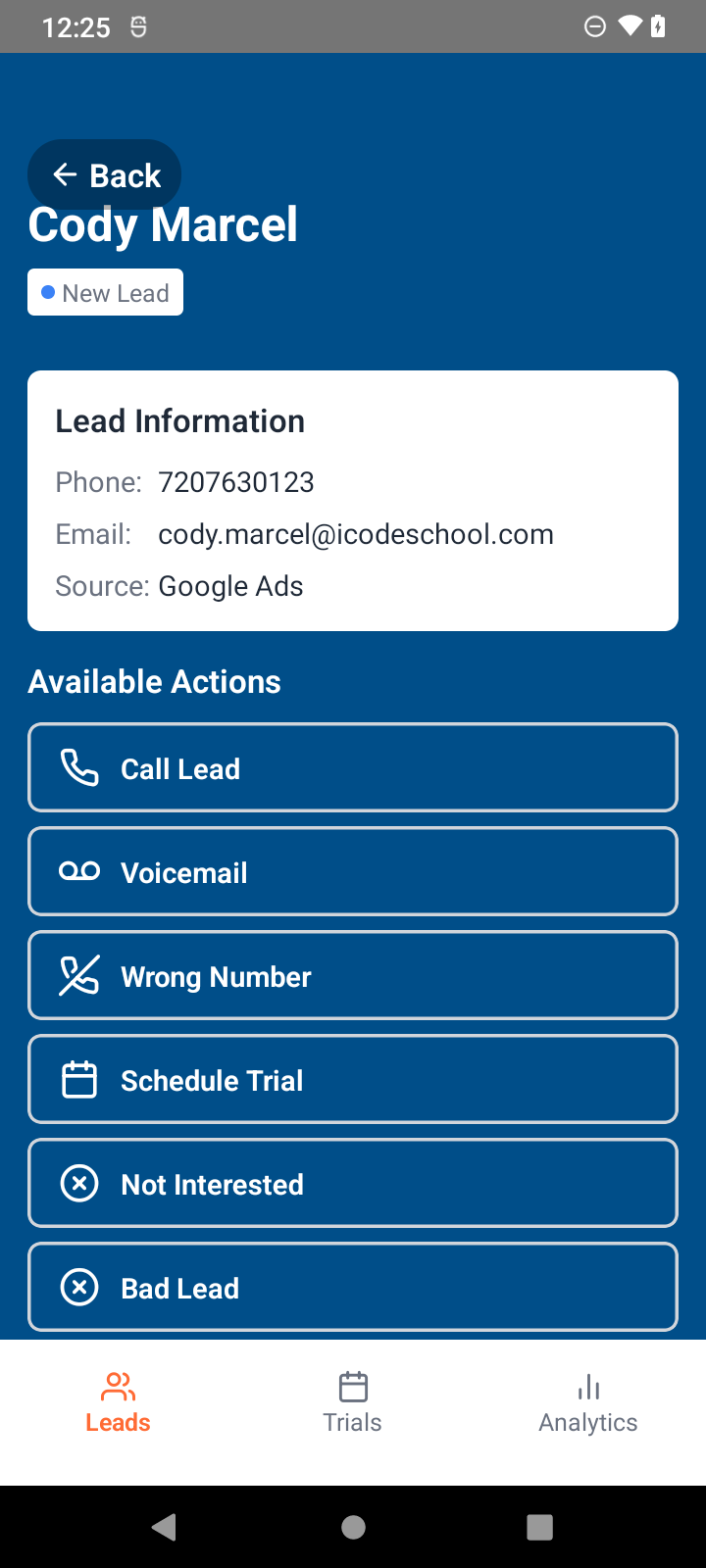
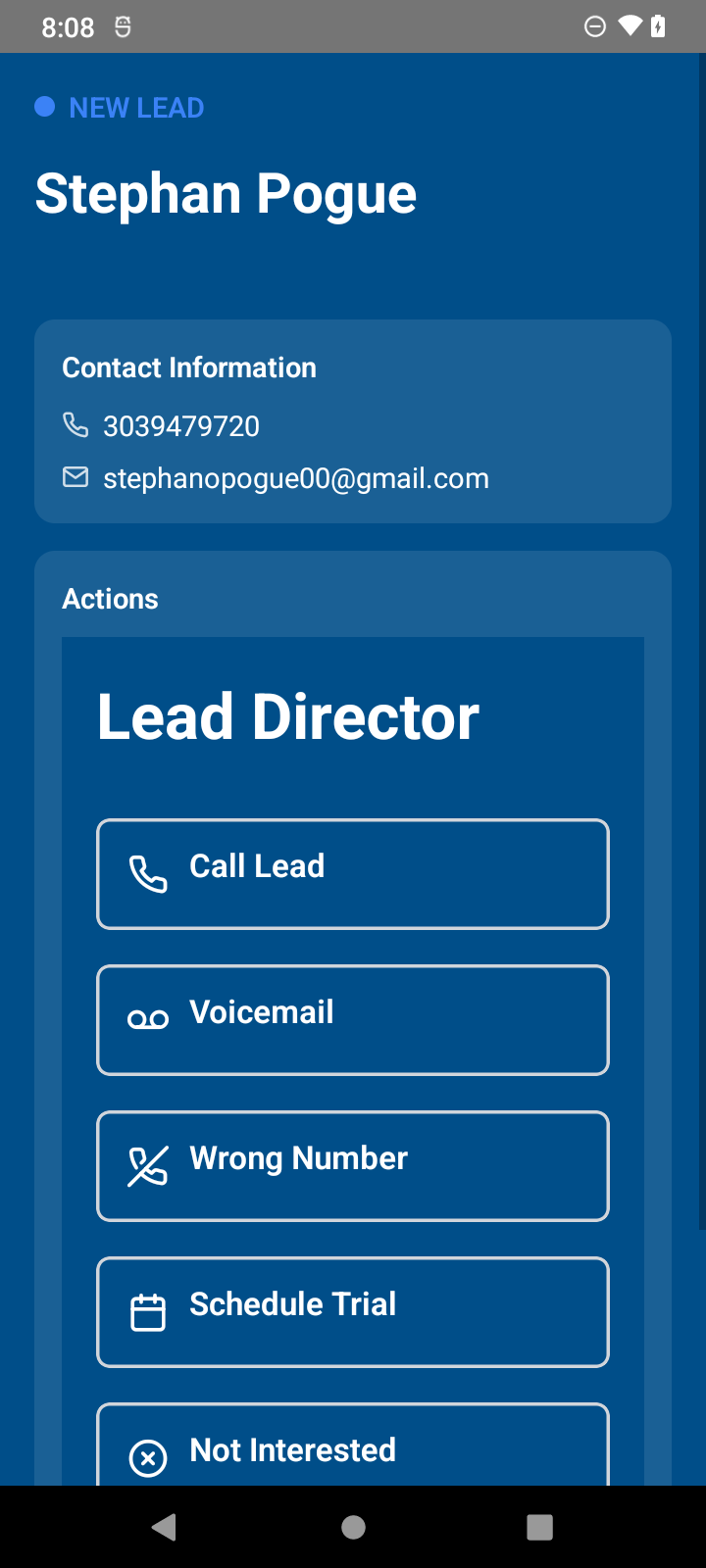
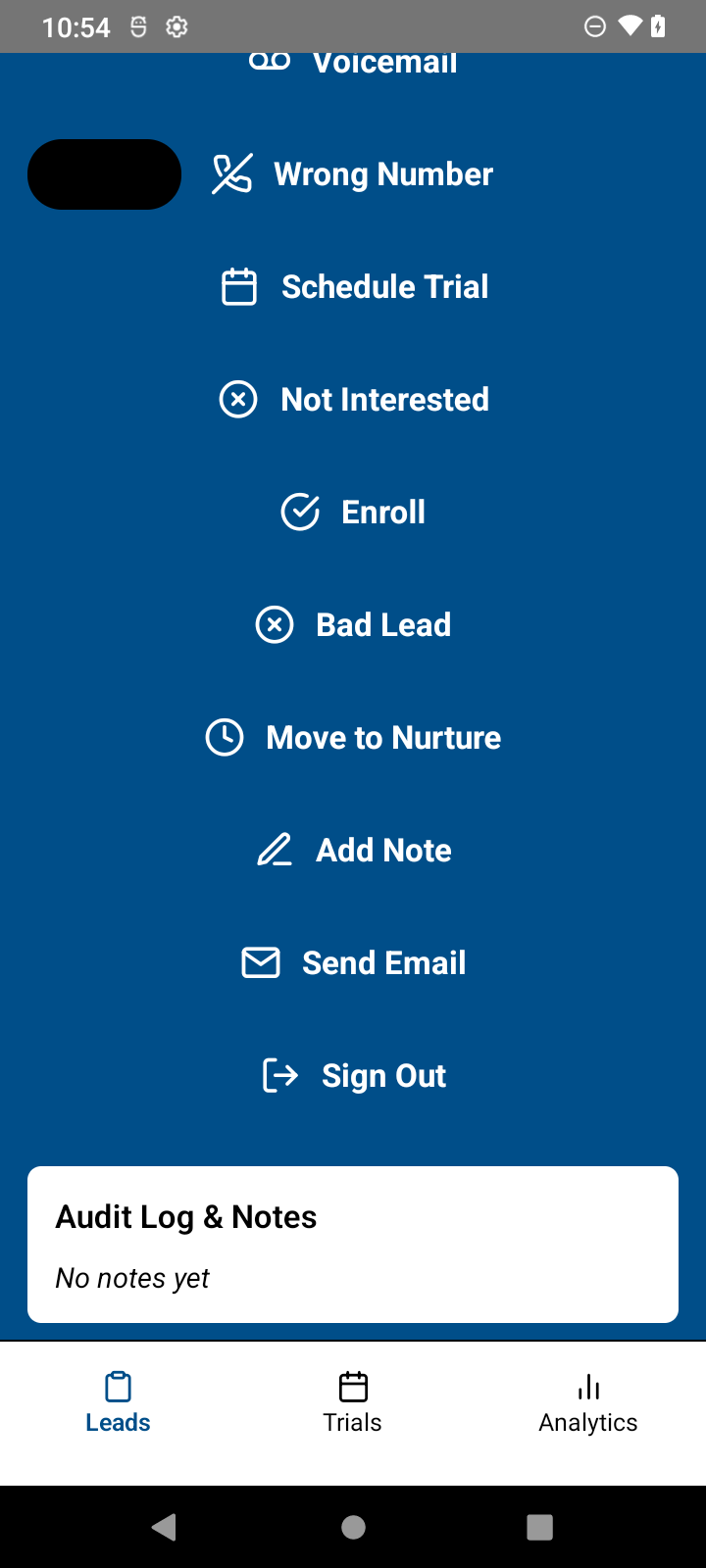
Lead detail actions let staff record follow-up notes and send workflow emails from the lead record. The screenshots show Add Note and Send Email alongside other follow-up actions.
Lead actions
Actual lead action list showing Add Note and Send Email
Add Note and Send Email appear as lead actions when the workflow exposes them for the current lead.
Actual lead detail screen with notes section visible
Notes are visible on the lead detail screen so follow-up history stays with the record.
Actual demo lead detail actions
Core lead actions are grouped on the lead detail view, including scheduling and communication actions.

Public Interest Form Ingest

Public interest forms collect contact information and create a Lead Director record for follow-up. The app requested in the public form is captured on the lead so teams can see which landing page or product generated the request.
Intake
Submitted fields: first name, last name, and email are required. Phone, use case, child name, child age, and tier can be included when the form asks for them. The selected public app is stored as the requested product or beta origin for the lead.
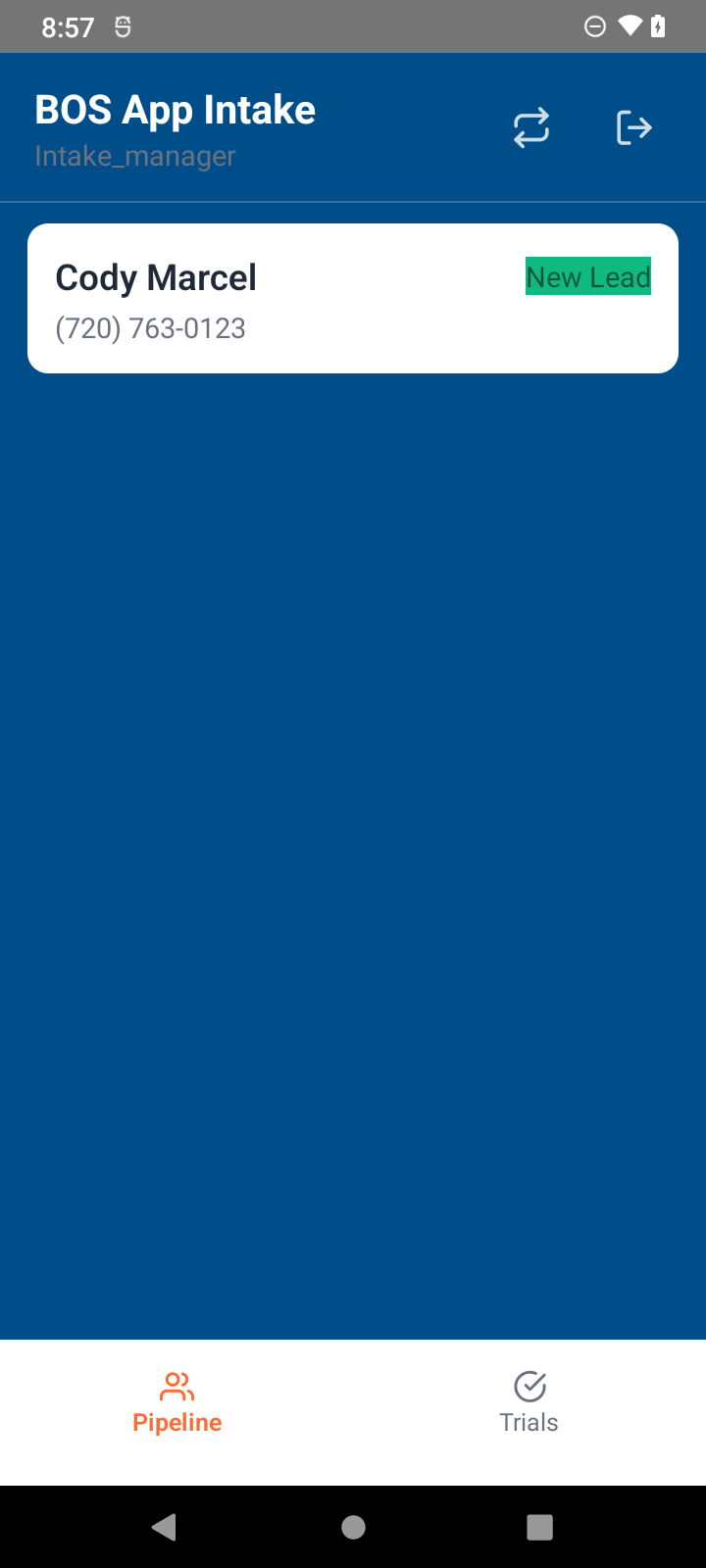
After submit: the form creates a new lead in the intake pipeline, records the landing-page request in the lead history, and can return a success redirect for the public page.
Actual intake pipeline with a new lead from public ingest
Submitted interest forms create new leads in the intake pipeline for follow-up.
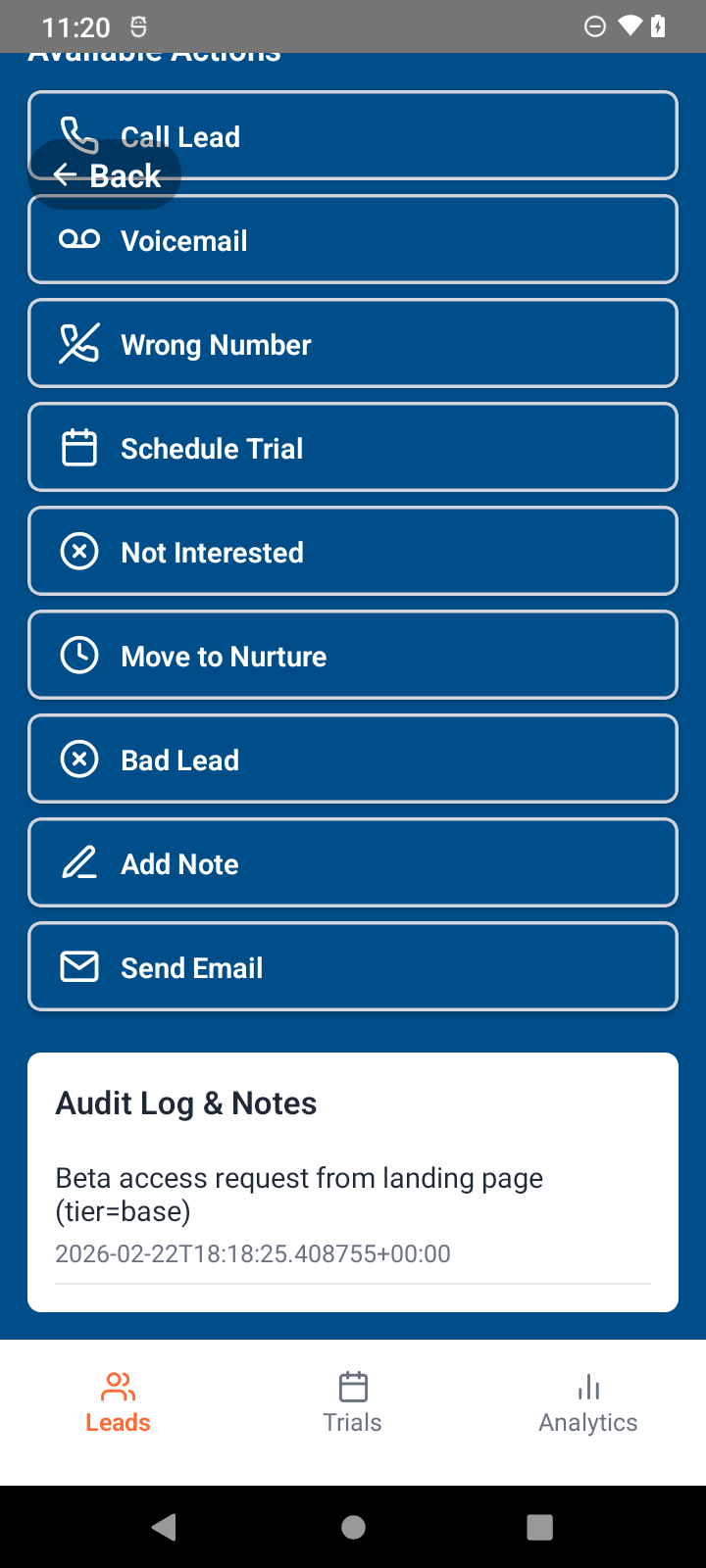
Actual lead detail with landing page request note
The lead detail history shows the landing-page request so staff can see where the lead came from.

Comms Plugin Views

Voice prompt and LLM execution

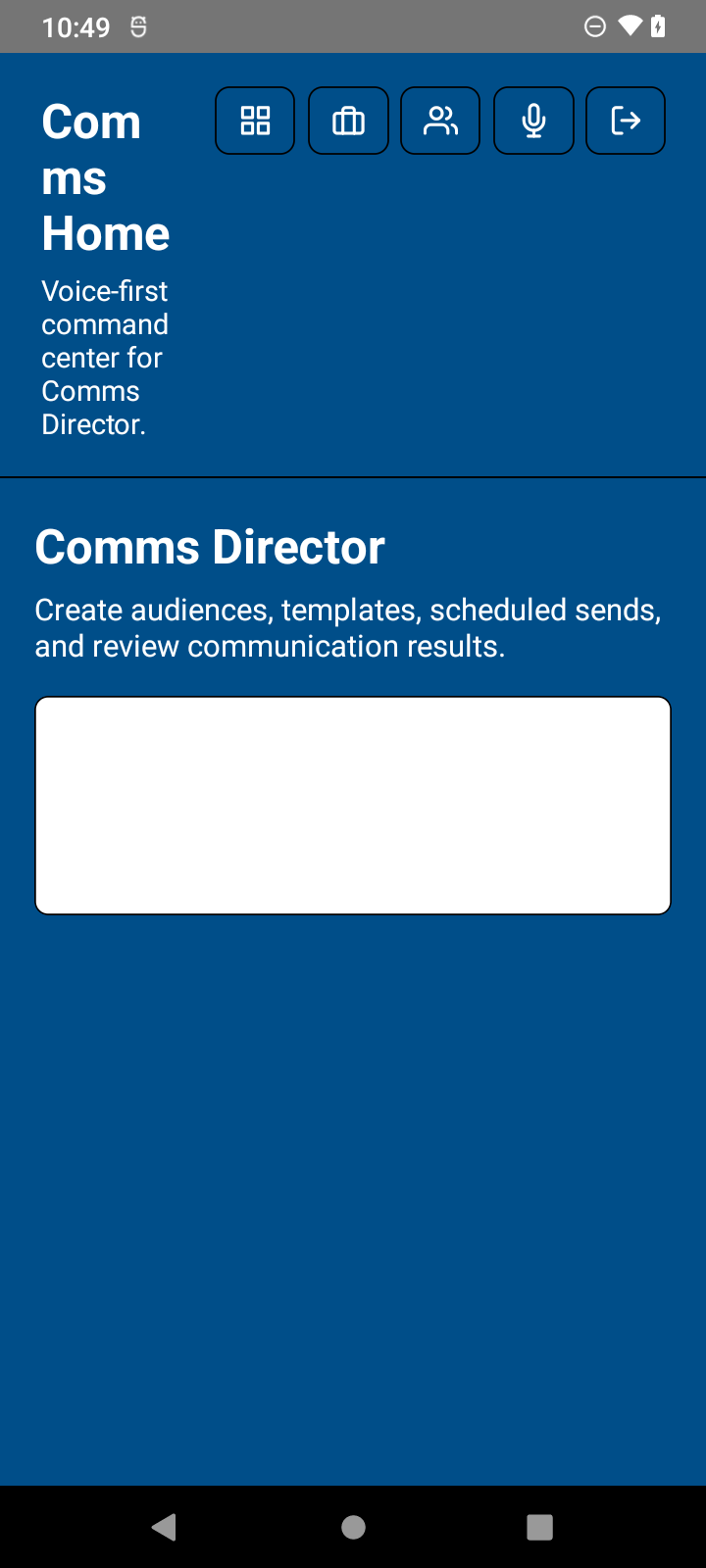
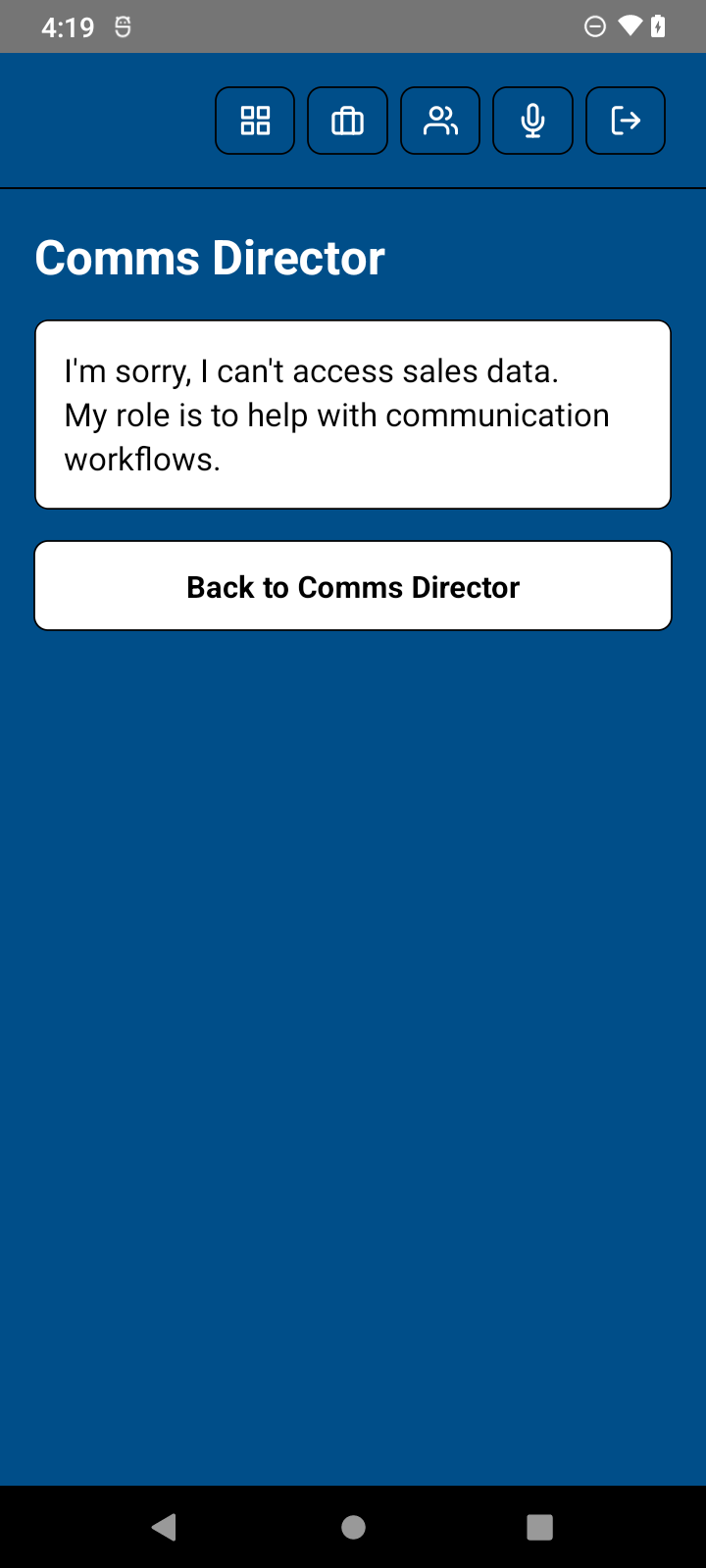
Comms Director uses a voice-first prompt surface. Actual screenshots show the Comms Director home and the error/result surface after a voice prompt.
Voice prompt
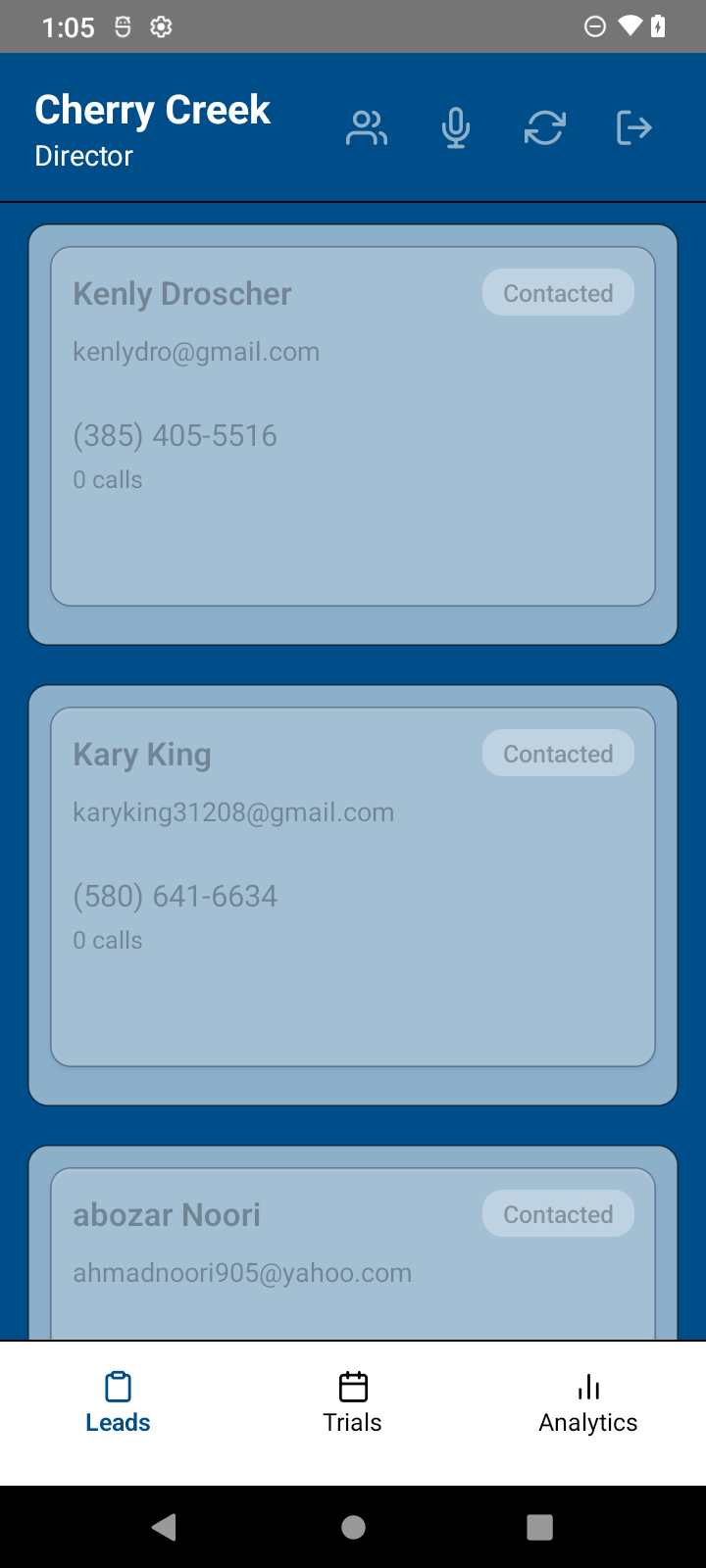
Actual Comms Director voice prompt home screen
Comms Director opens on a voice-first prompt surface for communication work.
Actual Comms Director response screen after voice prompt
Prompt results and recoverable errors are shown in the same workflow so the user can retry or continue.

Plugin Scope

These scope notes summarize what each plugin is responsible for in the business workflow.

Google Auth

Scope: connects a Google account when a workflow needs Google access.

  • Connects the selected Google account for the active workflow.
  • Returns the user to the workflow after authorization.
  • Supports Google Sheets, Calendar, and other Google-backed plugins.

Google Sheets Import

Scope: imports lead rows from a selected Google spreadsheet and sheet tab.

  • Connects Google account for Sheets access.
  • Detects spreadsheet headers and maps them to Lead Director fields.
  • Requires email or phone for deduplication.
  • Uses mapped target state and trial date columns to route imported leads when those fields are present.

Google Calendar

Scope: connects calendar access and supports trial scheduling from lead workflows.

  • Connects the calendar account used for scheduling.
  • Supports booking details such as date, time, session, location, and attendees.
  • Tracks scheduled trials and booking outcomes for follow-up.

Notes

Scope: captures and displays notes on lead records.

  • Adds staff notes during follow-up.
  • Can require notes before certain workflow actions complete.
  • Displays notes in the lead detail notes section.

SendGrid Email

Scope: sends workflow email through configured SendGrid templates.

  • Appears as Send Email when the workflow enables it.
  • Sends lead communication through the configured email provider.
  • Comms Director SendGrid workflows can require approval before sending.

Voice Search / Voice Prompt

Scope: captures a spoken prompt and returns matching app or external results.

  • Captures spoken requests for search or communication workflows.
  • Sends transcribed text to the configured search service.
  • Displays local and external results, including Calimatic school-record results when configured.

Calimatic Student Information System

Scope: provides school enrollment and family-record search when configured. No dedicated runtime screenshot is currently available.

  • Searches connected student, family, enrollment, and class records where configured.
  • External voice search results can include Calimatic school-record data.
  • Comms Director can include Calimatic query actions where configured.

Public Interest Form Ingest

Scope: turns public interest form submissions into Lead Director follow-up records.

  • Returns the configured public form for the requested app.
  • Requires first name, last name, email, and a valid tier.
  • Stores the requested app as landing-page origin context on the lead.
  • Creates a lead record in the intake pipeline and returns the configured success redirect.

Stripe Subscription / Stripe In-App Payment

Scope: supports subscription checkout, customer billing flows, and one-time payments. No dedicated runtime screenshot is currently available.

  • Subscription plugin handles recurring checkout and portal-style flows.
  • Payment plugin handles one-time payment intent flows.
  • The web payment surface displays a Stripe-hosted payment container when payment is required.

Meeting Bot

Scope: connects meeting automation to calendar-driven workflows. No dedicated runtime screenshot is currently available.

  • Uses plugin OAuth redirect/resume behavior.
  • Supports bot account connection and meeting mirroring.
  • Returns the user to meeting bot status after connection steps complete.

LLM and Google Drive Context

Scope: powers prompt execution and document context for Comms workflows. A dedicated Drive context runtime screenshot is not currently available.

  • LLM plugin executes app-owned prompts and returns text for display.
  • Drive context plugin owns read/write/sync/index context actions.
  • Drive content is used as context for configured app workflows.